
Service Home Tech
E15 Smart Lock Manual
Complete guide to using, configuring and managing the E15 lock from the Smart Life app (Tuya): register the administrator and users, add the lock to your home, invite members and generate temporary codes for guests.
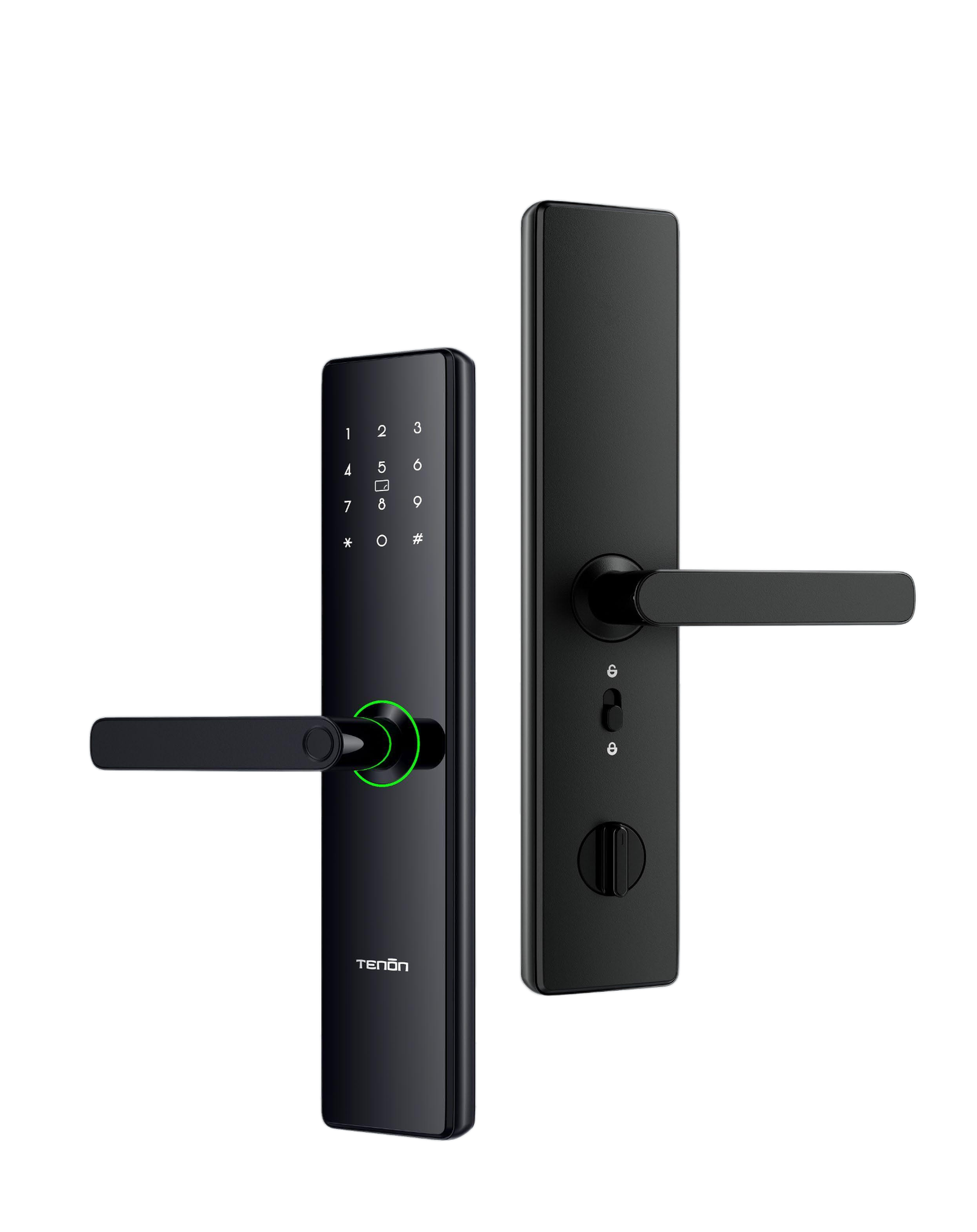
Visual manual prepared by Service Home Tech to explain the daily use of the E15 lock, keypad configuration and the full flow in the Smart Life app (Tuya): create your account, create your home in Panama, add the device, invite apartment members and generate temporary codes for guests. Need help? Message us on WhatsApp +507 6698-5872.
Part 1 — The E15 Lock
Everything you need to know about the hardware: how it opens, how it’s programmed from the keypad, and how to do the first-time setup.
Main features
Summary of E15 lock functions, organized for the end customer. Technical information is based on the product’s official page and the configuration images supplied.
Fingerprint
Semiconductor sensor built into the lever handle, with fast identification.
Password
Entry via touch panel. Virtual password / password protection function.
IC card
Allows opening via a registered IC card.
Mechanical key
Physical backup method. 2 mechanical keys are included per the official source.
Smart Life / Tuya app
Pairing over 2.4 GHz Wi-Fi. Allows remote unlocking, inviting users and creating temporary codes.
Security
Tamper alarm and temporary lockout after incorrect verification attempts.
Visual summary
Lever design with acrylic touchscreen / tempered glass, modern finish, circular indicator and classic voice-guided operation.
Highlighted functions
- Independent anti-peeping function.
- Circular indicator with color change.
- Large high-resolution touch panel.
- Alarm when the front panel is deformed by tampering.
Lockout after failed attempts
The lock enters a temporary lockout when the user fails verification 5 times within 5 minutes. The official source indicates a 90-second sleep mode; the images supplied indicate a 5-minute wait or opening with the mechanical key.
Technical specifications
Complete E15 lock data organized by block so you can validate door compatibility before installing.
Operation and access
| Model | E15 |
| Ways to open | Fingerprint / IC card / Password / Mechanical key |
| Operating system | Classic voice prompts |
| User capacity | 100 groups |
| Fingerprint reader | Semiconductor sensor |
| Identification time | ≤ 0.5 s |
| Password entry | Touch key |
| Password function | Virtual password / password protection |
Construction and installation
| Colors | Matt Golden / Black |
| Materials | Zinc Alloy + ABS |
| Screen material | Tempering Glass |
| Compatible locks / mortise | J6068EX, J6068W, J6068L |
| Top/bottom hook | Supported |
| Cylinder | Grade C |
| Mechanical keys | 2 |
| Door thickness | 45–100 mm |
Power and environment
| Power supply | 4x 1.5V AA alkaline batteries |
| Operating environment | -20 °C to 75 °C |
| Low-battery reminder | Indicated in official source |
| Emergency port | N/A — not specified in the source |
Validation before handover
Confirm that the door closes freely, that the latch doesn’t rub, that the handle operates correctly, and that the administrator is registered before adding users.
Password
IC card
Mechanical key
Daily use of the lock
Four ways to open the E15 lock. Fingerprint is the most commonly used, but they all work independently.
Open with fingerprint
-
Touch or wake the lock. Place the registered finger on the fingerprint reader.
-
Wait for verification. If the fingerprint matches, turn the handle to open.
Open with password
-
Touch the touch panel. Enter the registered password.
-
Confirm with #. Once approved, turn the handle to open.
Open with IC card
-
Wake the panel. Bring the registered IC card near the reading area.
-
Open the door. Once validated, turn the handle.
Open with mechanical key
-
Use the backup key. Use it when the lock can’t open via electronic methods.
-
Store it outside the apartment. It should be available for emergencies.
Initial setup
These steps prepare the lock to exit demo mode and register the first administrator.
1. Demo mode
-
Touch the screen.
-
Try an unlocking method: fingerprint / password / IC card.
2. Set up administrator
-
Touch the touch panel.
-
Double-click # to enter master mode.
-
Place your fingerprint 6 times, varying the position.
-
Enter a 6–8 digit password, then #.
-
Re-enter the password, then #.
-
Tap an IC card or press # to skip.
-
Success.
1. By default, the system assigns ID 01 to the administrator.
2. When adding the administrator for the first time, a password must be set. This step cannot be skipped. If skipped by mistake, press * to exit and try again.
Register users on the lock
Use this sequence to add users with fingerprint, password and/or IC card directly from the lock’s keypad.
-
Touch the touch panel.
-
Double-click # to enter master mode.
-
Identify as administrator with password or fingerprint.
-
Press 1 to add a user, or * to exit.
-
Enter the user number to add 02–99, then #.
-
Place the fingerprint 6 times or press # to skip.
-
Enter a 6–8 digit password or press # to skip.
-
Re-enter the password and press #.
-
Tap an IC card.
-
Success.
Delete users
Use this sequence to delete a specific credential or an entire user ID.
-
Touch the touch panel.
-
Double-click # to enter master mode.
-
Identify as administrator with password or fingerprint.
-
Touch 2 to delete users.
-
Enter the user ID 02–99 and touch #.
-
Touch 1 to delete the fingerprint.
-
Touch 2 to delete the password.
-
Touch 3 to delete the IC card.
-
Touch 4 to delete the entire ID.
-
Success.
Wi-Fi and system settings
Put the lock into pairing mode to link it to Smart Life, and check the system menu (serial number, time, software, volume, doorbell and language).
5. Put the lock into Wi-Fi mode
-
Touch the touch panel.
-
Double-click # to enter master mode.
-
Identify as administrator with password or fingerprint.
-
Touch 3 for network settings.
-
Pairing mode (the lock will start blinking).
-
Follow the steps in the Smart Life app (see Add device section).
-
Success.
6. System settings
-
Touch the touch panel.
-
Double-click # to enter master mode.
-
Identify as administrator with password or fingerprint.
-
Touch 4 for system settings.
-
1: check serial number.
-
2: check time and date.
-
3: check software version.
-
4: volume, level 1–4.
-
6: doorbell, 1 on / 2 off.
-
7: language settings.
Test mode, date and volume
Functional testing, date and time adjustment, and system volume settings.
7. Test / error mode
-
Touch the screen.
-
Double-click # to enter master mode.
-
Identify as administrator with password or fingerprint.
-
Press 5 for trial-and-error mode.
-
Touch 1 to turn on.
-
Touch 2 to turn off.
-
Success.
8. Date and time
-
Touch the touch panel.
-
Double-click # to enter master mode.
-
Identify as administrator with password or fingerprint.
-
Touch 6 for date and time settings.
-
Enter DAY-MONTH-YEAR-HR-MIN or press * to exit.
-
Success.
9. Volume
-
Touch the touch panel.
-
Double-click # to enter master mode.
-
Identify as administrator with password or fingerprint.
-
Press 3 for system settings.
-
Press 2 for volume settings.
-
Press 1–4 to select the volume level.
-
Success.
Reset, information and support
Procedure to restore the lock to factory settings, check device information, and maintenance recommendations.
10. Factory reset
-
Touch the touch panel.
-
Double-click # to enter master mode.
-
Identify as administrator with password or fingerprint.
-
Touch 4 for factory reset.
-
Press # to confirm or * to exit.
-
Success.
11. View information
-
Touch the touch panel.
-
Double-click # to enter master mode.
-
Identify as administrator with password or fingerprint.
-
Touch 4 for system information, or * to exit.
-
Touch 1 for the lock ID, 2 for time and date, or 3 for software version.
-
Success.
Recommended maintenance
- Use good-quality AA alkaline batteries.
- Replace batteries as soon as low-battery is indicated.
- Don’t strike the touch panel or force the handle.
- Clean with a soft, dry cloth.
- Keep mechanical keys outside the apartment.
Service Home Tech support
WhatsApp: +507 6698-5872
Email: info@servicehometech.com
Instagram: @servicehomeT
Website: servicehometech.com
Part 2 — Smart Life App (Tuya)
Visual guide to installing the app, creating your account, creating your apartment’s home in Panama, adding the E15 lock, inviting members and generating temporary codes for your guests.
How to create my Smart Life account
Before linking the lock, each person needs their own Smart Life (or Tuya Smart) account. You only need to do this once — the same account is used going forward.
Download the app
-
Open the App Store (iPhone) or Google Play (Android).
-
Search for Smart Life (or Tuya Smart — it’s equivalent).
-
Install and open the app.
Register your account
-
On the home screen, tap Sign up.
-
Accept the privacy policy.
-
Select country: Panama. ⚠️ Very important — this sets your server and can’t be changed later without deleting the account.
-
Enter your email or phone number and tap Get verification code.
-
Enter the verification code sent by email or SMS.
-
Create a password of 6 to 20 characters (letters + numbers).
-
Done — the app opens on the main screen.
How to create the apartment’s home (Panama)
A «Home» in Smart Life represents a physical space — a house, apartment or Airbnb — to which you’ll associate locks, cameras, lights, etc. Any user you invite later will only see the devices in that home.
Create the home step by step
-
Open Smart Life and tap the Me tab (bottom right corner).
-
Go to Home Management.
-
Tap Create home.
-
Home name: write something descriptive, for example «Apartment 501 · Costa del Este» or «Punta Pacífica Airbnb».
-
Home location: tap Set and choose it on the map. Country/Region: Panama. ⚠️ Essential — this is what allows you and your guests to share the home without issues.
-
Rooms: check the ones that apply (Living Room, Kitchen, Bedroom, Entrance, etc.). You can add «Main Entrance» for the E15 lock.
-
Tap Save (top right corner).
-
Done — the home appears as the active tab on the main screen.
How to add the E15 lock to the home
With the home created, we can now link the lock. The E15 connects over 2.4 GHz Wi-Fi — make sure you have the apartment’s network password handy.
Before you start
- The phone must be connected to a 2.4 GHz Wi-Fi network (not 5 GHz).
- Have the Wi-Fi name and password handy.
- Be close to the lock (less than 3 meters).
- The lock must have an administrator registered (see the Initial setup section).
Put the lock into pairing mode
-
On the lock, touch the touch panel.
-
Double-click # → master mode.
-
Verify as administrator (fingerprint or password).
-
Press 3 → network settings.
-
Choose pairing mode. The lock will blink, waiting for a connection.
Add the device from Smart Life
-
Open Smart Life in the correct home (the apartment name should appear top left).
-
On the main screen, tap the + button top right → Add device.
-
In the left-side menu, tap Camera & Lock → Lock (Wi-Fi) or Smart Lock (Wi-Fi).
-
If the app detects the lock automatically, tap Add. If not, check the box «Confirm the indicator is blinking rapidly» and tap Next.
-
Choose the 2.4 GHz Wi-Fi network and enter the Wi-Fi password. Tap Next.
-
Wait for the progress bar to reach 100% (about 30–90 seconds). The lock will beep when it connects.
-
When «Added successfully» appears, tap the ✏️ to rename the lock (e.g. «Apt 501 Entrance»).
-
Assign the «Main Entrance» room and tap Done.
-
The lock now appears on the home’s main screen.
How to add new users to the apartment
So that other people in the apartment (partner, family, staff, business partners) can open the lock from their own phone, you need to invite them to the home. Each person must first have their own Smart Life account in Panama.
Invite a new member
-
Open Smart Life and tap the Me tab (bottom right corner).
-
Go to Home Management.
-
Tap the apartment’s home where the lock lives (e.g. «Apartment 501»).
-
Scroll down to Home Members and tap Add Members.
-
Choose App Account (recommended — invitation by email or phone).
-
Name: enter the member’s visible name.
-
Country/Region: Panama. (⚠️ must match the country where the guest created their account.)
-
Account: enter the exact email or phone number the guest used to register with Smart Life.
-
Family role:
• Administrator: can add/remove members and devices.
• Common member: can only use the devices. -
Tap Save (top right corner).
-
The guest receives a notification in their app. They should open Smart Life → Me → Home Management and accept the invitation.
How to add temporary codes for guests
Ideal for Airbnb, guests, technicians, cleaning staff or deliveries: generate a code that only works during the dates and times you set. The guest doesn’t need a Smart Life account — just the number.
Option A · Temporary code for a date range
-
Open Smart Life, tap the E15 lock on the main screen.
-
Go to the Password tab.
-
Tap Add → Time-limited password.
-
Write a name for the code (e.g. «Guest Garcia Nov 15–20»).
-
Set the start date and time (e.g. Nov 15, 2:00 PM) and the end date and time (e.g. Nov 20, 11:00 AM).
-
The app generates a 6 to 10-digit code. Tap Save.
-
Share the code with the guest via WhatsApp, email or text message. It’s entered like a normal password + #.
Option B · One-time dynamic code
-
Open Smart Life, tap the E15 lock.
-
Go to Password.
-
Tap Dynamic password.
-
The app shows a 6-digit temporary code valid for ~5 minutes and for one use only.
-
Share the code with the person (technician, delivery, one-time visitor).
-
Entering the code + # opens the door once and then it expires.
Option C · Recurring codes (regular staff)
-
Open the lock in Smart Life → Password.
-
Tap Permanent password or Custom password (depending on app version).
-
Write a 6 to 10-digit code and a name (e.g. «Cleaning · Monday 9–12»).
-
If the app allows it, set the days of the week and time window in which that code works.
-
Save and share it with the person.
-
You can delete the code at any time from the same menu.
Need installation, programming or support for your E15 lock?
At Service Home Tech we install the E15 lock, link it to Smart Life, create your home in Panama, add your apartment’s users, and set up temporary codes for your guests. Free quote on WhatsApp.
Manual prepared by Service Home Tech based on the official manufacturer’s spec sheet for the E15 lock, the configuration images supplied, and the current Smart Life / Tuya Smart app flows. If you need a printable PDF version, message us on WhatsApp.